
wireless network problems and solutions: 7 Powerful Fixes 2025
The Hidden Causes Behind Wi-Fi Frustration
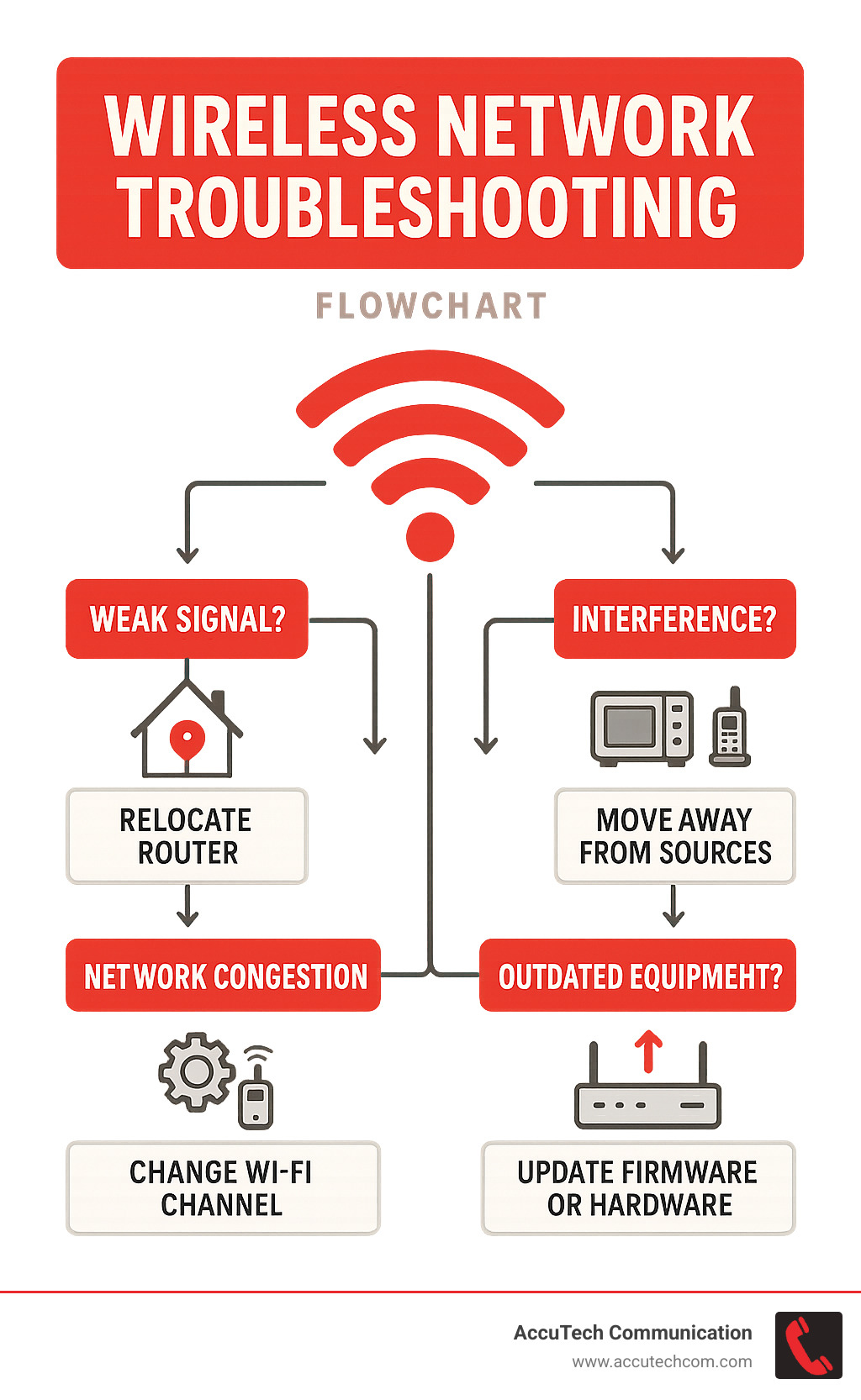
Wireless network problems and solutions affect virtually every business and home today. If you’re experiencing connectivity issues, here’s a quick reference guide to common problems and their fixes:
| Problem | Common Causes | Quick Solutions |
|---|---|---|
| Slow speeds | Interference, distance, congestion | Change Wi-Fi channel, move closer to router, limit connected devices |
| Dropped connections | Router overheating, firmware bugs | Ensure proper ventilation, update firmware |
| Dead zones | Physical obstacles, AP placement | Add mesh nodes or extenders, reposition router |
| Can’t connect | Wrong password, IP conflicts | Verify credentials, restart router, release/renew IP |
| Security issues | Weak encryption, outdated firmware | Enable WPA2/WPA3, update router software |
| Interference | Other electronics, neighboring networks | Switch to 5GHz band, select channels 1, 6, or 11 |
| Outdated hardware | Old routers, incompatible devices | Upgrade to Wi-Fi 5/6 equipment |
Whether you’re running critical business operations or simply trying to stream your favorite show, few things are more frustrating than an unreliable wireless network. Up to 60% of wireless network issues in enterprise environments are caused by physical or RF interference from walls, electronic devices, and neighboring networks. Another 50% stem from incorrect access point placement, creating those annoying dead zones where connectivity drops entirely.
The good news? Most wireless network problems have straightforward solutions once you understand what’s happening behind the scenes.
I’m Corin Dolan, owner of AccuTech Communications with over 25 years of experience diagnosing and resolving wireless network problems and solutions for businesses across Massachusetts, New Hampshire, and Rhode Island. My team and I have encountered virtually every type of wireless network challenge across healthcare facilities, manufacturing plants, and corporate environments.
Similar topics to wireless network problems and solutions:
– wireless networking solutions for hospitality
– wireless network security issues and solutions
– wireless network solutions for business
Why Your Wi-Fi Matters
In today’s always-on world, wireless connectivity isn’t just a convenience—it’s essential infrastructure. With remote work becoming standard practice, streaming services replacing cable TV, and the explosive growth of IoT devices (smart thermostats, security cameras, and appliances), the average home now has 25+ connected devices. For businesses, that number can easily reach into the hundreds or thousands.
A Cisco study found that microwaves can reduce Wi-Fi throughput by 64%, while video cameras and analog phones can cause 100% signal loss. These statistics highlight why understanding wireless network problems and solutions is crucial for maintaining productivity and connectivity.
Diagnose First: Is It the Device, Network, or Internet?
Before diving into specific fixes, it’s important to identify exactly where the problem lies. Is it your device, the wireless network itself, or your internet connection? This systematic approach saves time and prevents frustration.
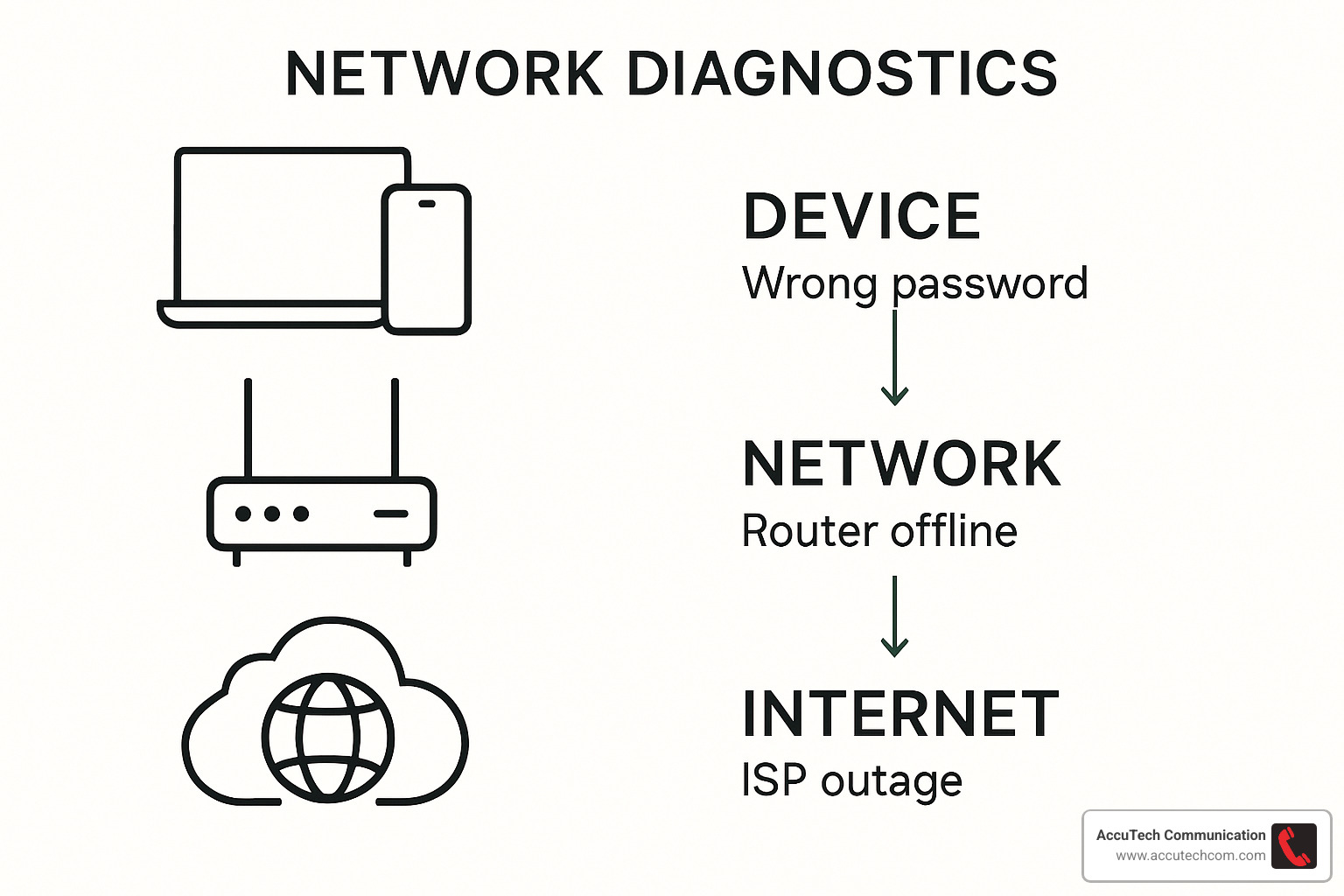
Here’s something that might make you smile – a recent industry study found that simply restarting the router and affected devices resolves more than 40% of reported wireless connectivity issues. It’s like the universal IT advice of “have you tried turning it off and on again” actually works! While this simple fix is surprisingly effective, let’s walk through a more methodical approach to pinpoint exactly what’s going wrong.
Device-Level Checks
When your laptop won’t connect but your phone is happily streaming Netflix, you’re likely dealing with a device-specific issue.
Start with the obvious – many laptops have a physical Wi-Fi switch or function key that gets bumped accidentally. I once spent 20 minutes troubleshooting a connection only to find my client had accidentally hit the wireless toggle on their keyboard!
Toggling airplane mode can be a quick fix too. Turn it on, count to five, then turn it off again. This simple action resets all wireless radios and often resolves mysterious connection problems.
Outdated network drivers are silent troublemakers. I remember helping a frustrated business owner whose Lenovo laptop would mysteriously drop its connection only when plugged in. After weeks of head-scratching, we finded the culprit: when on AC power, the laptop was changing its MIMO Power Save Mode, which broke beamforming on certain access points. A driver update fixed it instantly.
Don’t overlook power-saving settings either. For reliable connections, set wireless adapters to “Maximum Performance” rather than “Power Saving” mode, especially on laptops.
If you’re still stuck, booting into Safe Mode can help identify if third-party software is the culprit. Sometimes security software gets a bit too enthusiastic about “protecting” your connection.
Network-Level Checks
When multiple devices start acting up simultaneously, your wireless network is likely the culprit.
First, verify you’re connecting to the right network with the correct password. It sounds basic, but I’ve seen many situations where devices accidentally connect to a neighbor’s similarly-named network or a previous network saved in your device’s memory.
DHCP settings matter too. Ensure your router is set to automatically assign IP addresses and that your devices are configured to obtain them automatically. Without this, devices might connect to Wi-Fi but can’t access anything beyond your local network.
Wireless channel congestion is like trying to have a conversation in a crowded restaurant. Use a Wi-Fi analyzer app (many free ones are available) to see if your router is fighting for attention on an overcrowded channel. Switching to a less congested channel can dramatically improve performance.
IP conflicts happen when two devices try to use the same address – imagine two houses with identical street numbers trying to receive mail. Your network gets confused about where to send data, causing both devices to have connectivity problems.
And yes, restarting your router really does work wonders. It clears the memory, reestablishes connections, and gives your network a fresh start. I recommend scheduling automatic reboots during off-hours for business networks.
Internet-Level Checks
Sometimes your Wi-Fi connection is perfect, but the internet itself is the problem. Here’s how to check:
Ping your gateway to see if data can reach your router. Open Command Prompt (Windows) or Terminal (Mac) and type ping 192.168.1.1 (replace with your actual gateway address if different). If this works but internet sites don’t, your local network is fine but your internet connection isn’t.
Rebooting your modem can resolve many internet connectivity issues. Unplug it for 30 seconds (count it out – I’m serious!), then plug it back in and wait for it to fully restart. This process can take 2-3 minutes, so be patient.
Always check your ISP status before diving into complex troubleshooting. A quick visit to your service provider’s status page or call to their support line can tell you if the problem is on their end, saving you hours of unnecessary work.
Finally, run a speed test to establish a baseline for your connection. This helps determine if you’re getting what you’re paying for and can identify times of day when your connection might struggle.
For more detailed information about networking fundamentals, check out our guide on What is Networking and Communication.
By methodically working through these wireless network problems and solutions, you can pinpoint exactly where your issue lies – saving time, reducing frustration, and getting back online faster.
Wireless Network Problems and Solutions: 7 Common Scenarios & Fixes
Now that we’ve pinpointed where your issue might be hiding, let’s roll up our sleeves and tackle the seven most common wireless network problems and solutions we see day in and day out at AccuTech Communications.

Slow Speeds: Quick Wireless Network Problems and Solutions
We all know the frustration of watching that spinning wheel while a webpage loads at a snail’s pace. Slow Wi-Fi is probably the number one complaint we hear from both homes and businesses.
The culprits behind sluggish speeds are often hiding in plain sight. Your router might be overwhelmed with too many devices crowding one frequency band, or perhaps your neighbor’s network is creating interference. Sometimes you’re simply too far from your router, or your trusty equipment has simply gotten a bit long in the tooth.
Here’s what works: Switch between frequency bands when possible. Your 5GHz band delivers speedier connections but doesn’t reach as far, while 2.4GHz gives you better range but is more susceptible to interference from everyday devices.
Quality of Service (QoS) settings are a game-changer that many people overlook. This feature lets you prioritize important traffic like your Zoom calls over less time-sensitive activities like downloading files.
I remember helping a small business owner in Marlborough who was ready to completely overhaul their network due to sluggish performance. “We thought we needed all new equipment,” they told me. “But after you helped us set up QoS to prioritize our point-of-sale system and VoIP phones, everything ran smoothly without spending a dime on hardware!”
Dropped Connections: Essential Wireless Network Problems and Solutions
There’s nothing quite as maddening as being kicked off your network repeatedly, especially in the middle of an important video call or just as you’re about to win that online game.
Your router might be overheating if it’s stuffed in a poorly ventilated cabinet. Firmware bugs can cause random disconnects until they’re patched. In multi-access point setups, your devices might be struggling with “roaming decisions” – not knowing which access point to connect to. And if you’re using certain 5GHz channels, something called DFS radar detection might be forcing disconnections.
Proper ventilation is surprisingly important – your router needs to breathe! Keep it in an open area where heat can dissipate. Firmware updates often fix known bugs causing those frustrating drops. For mesh networks or multiple access point setups, adjusting roaming thresholds can prevent devices from constantly jumping between access points.
One of our senior technicians shares: “We had a client in Boston whose mesh network kept dropping connections every few minutes. After investigation, we finded the nodes were too close together, causing devices to play ping-pong between them. Simply adjusting their placement and tweaking the roaming settings solved the problem completely.”
Coverage Dead Zones
We’ve all experienced those annoying dead spots where Wi-Fi mysteriously disappears – behind the staircase, in the far corner of the basement, or that one conference room where connections always fail.
Physical obstacles like concrete walls, large metal furniture, and even kitchen appliances can block signals. Often, the router is simply placed in a poor location, or you might need additional access points for larger spaces. Signal reflection and interference can also create unexpected dead spots.
The fix often starts with repositioning your router to a central, liftd location. For larger spaces, mesh nodes or range extenders can fill coverage gaps beautifully. Don’t overlook antenna orientation – for 2.4GHz networks, perpendicular placement works best, while angled positions (around 45°) often optimize 5GHz coverage.
Industry research shows that over 50% of Wi-Fi performance issues stem from incorrect access point placement or simply not having enough access points to cover the area properly. Sometimes the simplest solutions make the biggest difference!
RF Interference
Radio frequency interference is like having a conversation in a noisy restaurant – other signals can drown out your Wi-Fi communications.
Your microwave oven, older cordless phones, baby monitors, Bluetooth devices, and even USB 3.0 cables can all create interference that disrupts your wireless network. This interference often manifests as intermittent connectivity problems that seem to come and go mysteriously.
Switching to 5GHz when possible helps avoid many common interference sources. If you must use 2.4GHz, change your router’s channel to 1, 6, or 11 to minimize overlap with neighboring networks. Sometimes, simply relocating interfering devices away from your router solves the problem.
I recall a client in Worcester who was baffled by their Wi-Fi dropping every day around lunchtime. After some detective work, we finded their break room microwave was directly on the other side of the wall from their router. Moving the router just a few feet away completely solved what had been weeks of frustration!
Network Congestion & Too Many Devices
Today’s networks are handling more devices than ever before. Between laptops, phones, tablets, smart TVs, security cameras, thermostats, and countless other IoT gadgets, even small households can easily have 25+ connected devices.
When your network gets congested, it’s like a highway at rush hour – everything slows to a crawl. Your router might be running out of IP addresses to assign, bandwidth-intensive applications might be hogging resources, or your router itself might simply be overwhelmed by the number of connections.
Increasing your DHCP pool size ensures your router can assign enough IP addresses to all your devices. Adjusting DHCP lease time helps manage how long devices retain their assigned addresses. For more complex environments, network segmentation creates separate lanes for different types of traffic.
We’re seeing network congestion problems skyrocket as businesses deploy more IoT devices without properly scaling their network infrastructure. A thoughtful approach to device management can prevent most of these issues before they start.
Security Vulnerabilities
An unsecured wireless network is like leaving your front door wide open – it invites trouble and exposes your sensitive data.
Weak encryption (particularly older standards like WEP), default or easily-guessed passwords, unsecured guest access, and rogue access points are common security gaps we find in both home and business networks. These vulnerabilities can lead to unauthorized access, data theft, and even using your network for illegal activities.
WPA2 or WPA3 encryption provides strong protection for your wireless traffic. Combine this with strong, unique passwords of at least 12 characters – think phrases rather than single words. For businesses and homes with frequent visitors, creating a separate guest network keeps unknown devices isolated from your main network and sensitive devices.
Security misconfigurations are responsible for a significant portion of wireless network breaches. The good news is that most security improvements are simple to implement and cost nothing but a little time.
For a deeper dive into securing your network, check out our guide to Wireless Network Security Issues and Solutions.
Hardware & Firmware Issues
Sometimes the problem isn’t your setup or environment – it’s the equipment itself acting up.
Outdated firmware can contain bugs or security vulnerabilities that impact performance. Aging hardware gradually loses efficiency as components degrade. Incompatible devices might struggle to maintain connections, and overheating equipment can behave erratically.
Regular firmware updates are like oil changes for your network – they keep everything running smoothly and securely. Monitoring device temperature helps prevent overheating issues that can cause strange behavior. Most routers have a practical lifespan of 3-5 years, so replacing aging equipment before it fails completely can prevent unexpected downtime.
Our technicians have found that firmware and driver updates resolve up to 30% of intermittent connectivity issues. This simple maintenance step is often overlooked but can save hours of troubleshooting and frustration.
For more technical information about wireless networking fundamentals, the Wikipedia article on Wireless Networking provides excellent scientific background.
Expanding Coverage & Beating Interference
For larger spaces or challenging environments, standard solutions may not be enough. Here’s how to expand your wireless coverage effectively.
Optimal AP Placement & Antenna Orientation
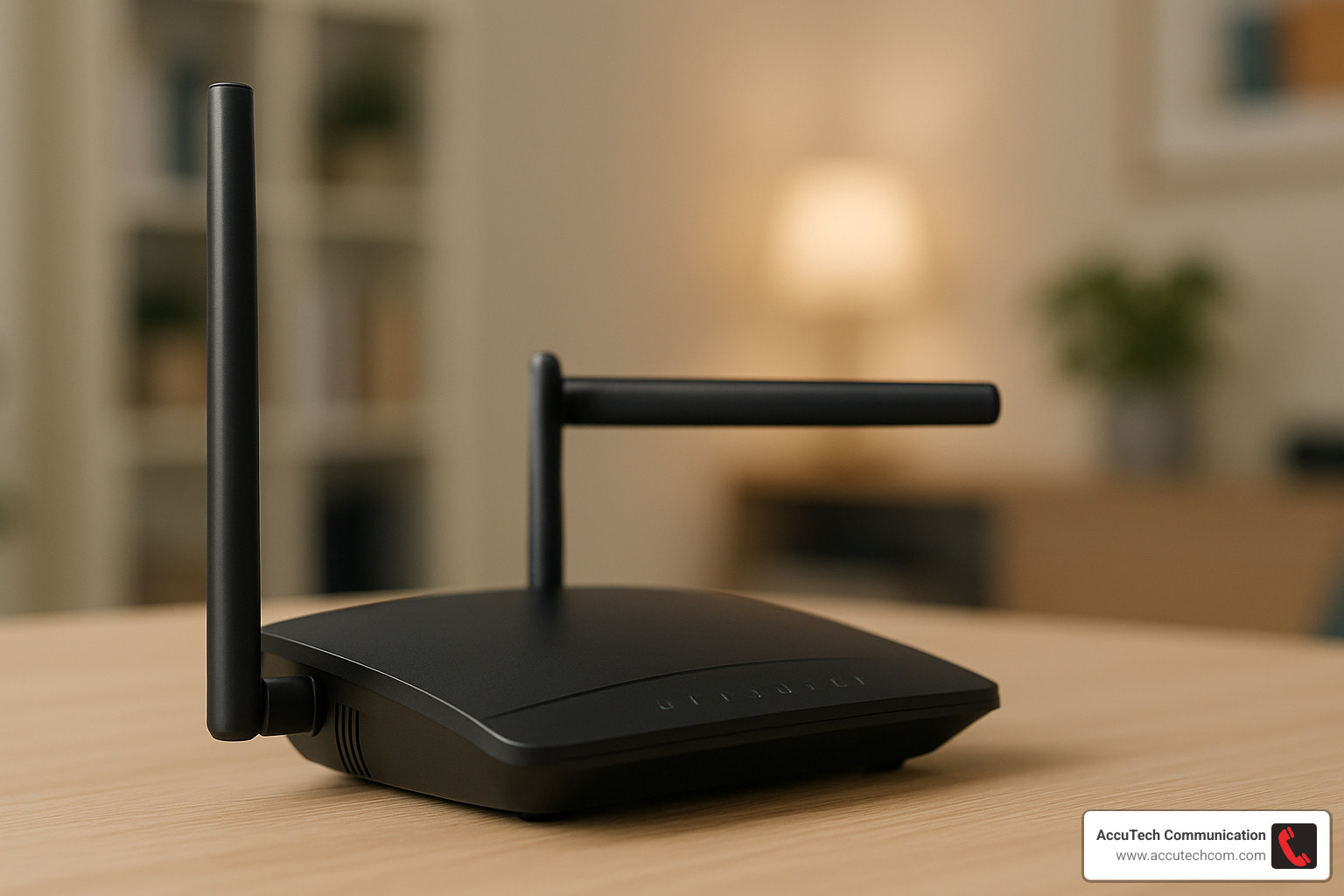
The physical positioning of your wireless equipment makes a world of difference in performance. I’ve seen countless situations where simply moving an access point a few feet made the difference between frustration and flawless connectivity.
Placing your router or access points centrally within your coverage area gives you the best starting point. Think of your Wi-Fi signal like ripples in a pond – you want the stone dropped in the middle, not off to one side.
Height matters too. In most cases, mounting access points high on walls or ceilings dramatically improves signal propagation. This helps your signal travel over furniture and other obstacles rather than through them.
When it comes to those antennas, a little adjustment goes a long way. For 2.4GHz networks, positioning your antennas perpendicular to each other (at 90° angles) typically provides optimal coverage. If you’re working with 5GHz, we’ve found that a 45° angle often performs better.
One lesson we’ve learned the hard way: keep access points away from metal objects, thick walls, and reflective surfaces. I remember one client who mounted their router behind their refrigerator “to hide it” and couldn’t understand why their signal was terrible!
Mesh, Repeaters, or Private Wireless?
When expanding your wireless network problems and solutions toolkit, you’ll face a choice between several approaches:
| Solution | Pros | Cons | Best For |
|---|---|---|---|
| Wi-Fi Extenders | Affordable, easy setup | Creates new network name, halves bandwidth | Small homes, budget solutions |
| Mesh Networks | Seamless roaming, single network | More expensive, may need wired backhaul | Medium-large homes, offices |
| Private Wireless (LTE/5G) | Superior coverage, dedicated spectrum | Highest cost, requires expertise | Large campuses, industrial settings |
Your choice depends on several factors. Consider your coverage area first – a small apartment needs a different solution than a sprawling warehouse. Client density matters too – how many devices will connect simultaneously? Ten family devices need less infrastructure than fifty employees with multiple devices each.
Mobility requirements play a big role as well. Do your users need to move throughout the space without disconnecting? If so, mesh or private wireless might be the better choice. And of course, budget constraints will influence your decision.
I’ve found that private wireless networks can be surprisingly economical for certain applications. For industrial clients with large, open facilities like warehouses or manufacturing plants, they often require only 20-30% of the access points needed by traditional Wi-Fi for equivalent coverage. For several of our clients across Massachusetts and Rhode Island, this has meant significant cost savings over time.
If you’re looking for professional help with implementation, check out our Network Installation Services for expert deployment.
Detect & Minimize RF Noise
Radio frequency interference can be the invisible enemy of good Wi-Fi. Without the right tools, it’s like trying to find a whisper in a crowded room.
Spectrum analyzers have saved the day for many of our clients. These tools visualize RF activity and help identify sources of interference, turning guesswork into precision. It’s amazing how often the culprit turns out to be something unexpected – like a wireless camera system or even a neighbor’s baby monitor.
For 2.4GHz networks, following the 1-6-11 rule is golden. These non-overlapping channels minimize co-channel interference, giving each access point its own “lane” to communicate. It’s a simple change that often yields dramatic improvements.
Sometimes the solution involves replacing interfering devices. Switching old cordless phones from 2.4GHz to 5.8GHz or 900MHz models can eliminate persistent interference issues. And don’t underestimate the impact of USB 3.0 devices – using high-quality, shielded cables can significantly reduce the RF noise they generate.
I remember working with a healthcare facility in New Hampshire where their patient monitoring system kept dropping connections at random intervals. Our spectrum analysis revealed the culprit: interference from newly installed digital signage. By changing channels and repositioning a few access points, we resolved the issue without any expensive hardware changes. The relief on the IT manager’s face was priceless!
Understanding and addressing wireless network problems and solutions for interference takes some detective work, but the rewards of a stable, reliable network make it well worth the effort.
Future-Proof Your Wi-Fi: Security, Upgrades & Maintenance Best Practices
A truly reliable wireless network isn’t a “set it and forget it” affair—it requires ongoing attention and periodic updates. Think of your Wi-Fi like your car: regular maintenance prevents breakdowns and extends its useful life. Let’s explore how to keep your wireless network running smoothly for years to come.
Lock It Down Without Slowing It Down
Good news: strong security doesn’t have to come at the expense of performance. You can have both!
Most wireless network problems and solutions related to security stem from outdated protocols or weak passwords. Start by implementing WPA3 wherever possible—it’s the latest security standard that improves upon WPA2 while maintaining backward compatibility with older devices.
Use strong pre-shared keys that are truly difficult to crack. I’ve seen countless networks protected by nothing more than “password123” or the business name. As one client in Woburn told me after a breach: “I thought simple was better because we could remember it easily. Never again!”
For businesses, especially those in regulated industries like healthcare or finance, consider enterprise authentication methods like RADIUS or certificate-based authentication. These provide significantly stronger security than simple passwords and allow for individual user tracking.
Network segmentation is another powerful tool in your security arsenal. Creating separate VLANs for different types of traffic (guest access, IoT devices, business operations) contains potential breaches and prevents lateral movement by attackers.
Upgrade Triggers & ROI
Knowing when to upgrade your wireless infrastructure is just as important as knowing how. I’ve met many business owners who either upgrade too frequently (wasting money) or wait far too long (losing productivity).
Your equipment is probably due for an upgrade if it’s over 5 years old. Wireless standards evolve rapidly, and that trusty old router from 2016 simply wasn’t designed for today’s connected world. One manufacturing client in Sudbury was reluctant to replace their aging network until we showed them how much productivity they were losing to connectivity issues. Their return on investment for a new Wi-Fi 6 deployment was realized in just four months through increased operational efficiency.
Another clear upgrade trigger is when you’ve added significant IoT devices to your environment. Those smart thermostats, security cameras, and automated systems all compete for bandwidth and connections. Older routers simply struggle with numerous simultaneous connections.
If you’ve recently upgraded to multi-gigabit internet service, your old router could be creating a bottleneck. It’s like putting a garden hose on a fire hydrant—all that potential speed gets constricted by outdated equipment.
Finally, if you’re experiencing consistent performance issues that troubleshooting can’t resolve, it’s probably time for new gear. Technology has its limits, and sometimes an upgrade is the only real solution.
Scheduled Maintenance & Remote Monitoring
Proactive maintenance prevents many common wireless network problems and solutions from developing in the first place. Think of it as preventive medicine for your network.
Many modern routers support scheduled automatic reboots—typically during off-hours when few people are using the network. This simple practice clears memory, reestablishes connections, and resolves many minor glitches before they become major headaches.
Log monitoring might sound technical, but it’s incredibly valuable. Your network equipment keeps detailed records of errors, connection attempts, and potential security issues. Regularly reviewing these logs (or having a professional do it) helps identify problems before they affect your users.
As your physical environment changes—new walls, different furniture arrangements, more devices—so do your wireless needs. Conducting periodic site surveys ensures your access points remain optimally placed for your current situation, not last year’s office layout.
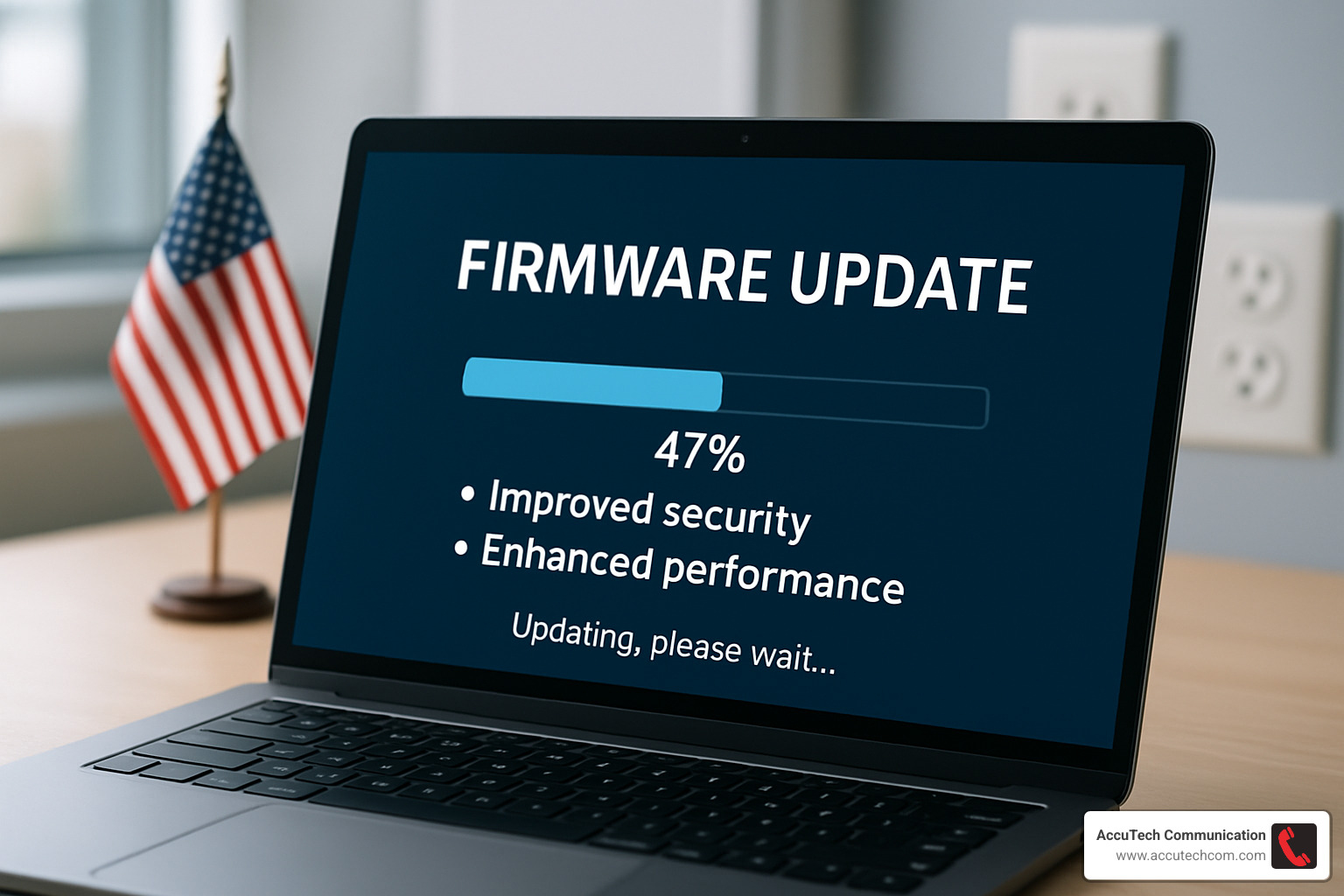
Firmware updates are essential but often overlooked. Set a regular schedule (monthly is ideal) for checking and applying updates. These patches fix security vulnerabilities and often improve performance. One healthcare client in Providence had been experiencing intermittent disconnections for months until we finded they were running router firmware from 2018!
At AccuTech Communications, we provide remote monitoring services that catch potential issues before they impact your business. Our proactive approach has helped clients throughout New England maintain consistent connectivity without the stress of constant troubleshooting.
For businesses with structured cabling needs, our Network Cabling Installation services ensure your wired infrastructure properly supports your wireless network. The two systems should work together seamlessly, not fight each other.
Frequently Asked Questions about Wi-Fi Troubleshooting
Why is 5 GHz fast but short-range?
5 GHz signals operate at a higher frequency than 2.4 GHz, allowing for faster data transmission. However, physics dictates that higher frequency waves don’t penetrate obstacles as effectively and don’t travel as far. Think of it like sound: bass notes (low frequency) can be heard through walls, while high notes (high frequency) are more easily blocked. This is why 5 GHz works beautifully in the same room as your router but struggles to reach across your home or office.
How many devices can my router really handle?
While manufacturers might claim support for 50+ devices, the practical limits are much lower. Consumer routers typically handle 15-25 devices efficiently, while business-grade equipment might support 50-100 devices with good performance. Beyond these numbers, you’ll likely experience slowdowns even if connections are maintained.
I often tell clients to think of it like a conversation: one person can speak to 20 people simultaneously if they’re all quiet and taking turns, but if everyone starts talking at once, communication breaks down quickly. Your router faces the same challenge when too many devices are actively using bandwidth.
When should I call a professional vs DIY?
DIY troubleshooting is perfectly appropriate for basic connectivity issues, simple speed problems, single device connection troubles, and routine router reboots. Most homeowners and small business operators can handle these tasks with a bit of patience.
However, consider professional help when multiple troubleshooting attempts have failed, you need coverage across a large or complex space, security is paramount (such as in financial or healthcare environments), or your business depends on consistent, high-performance connectivity.
“What many people don’t realize is that a professional wireless assessment can actually save money,” explains our operations manager. “We’ve had clients in Worcester and Providence who spent thousands on unnecessary equipment before calling us, when their issues could have been resolved with proper configuration and placement.”
A professional brings not just technical knowledge but experience across dozens or hundreds of similar environments. We’ve likely seen your exact issue before and can resolve it quickly, often without expensive hardware purchases.
Conclusion & Next Steps

The world of wireless network problems and solutions doesn’t have to feel like navigating a technical maze. I’ve seen countless clients go from pulling their hair out to enjoying seamless connectivity by following the systematic approach we’ve outlined. The beauty is that most wireless issues can be resolved without an engineering degree!
Think of your network as a three-layered cake: device, network, and internet connection. When something tastes off, you need to figure out which layer is causing the problem. Start with the simplest fixes that often work wonders – rebooting your devices, checking settings, and verifying basic connections. You’d be surprised how often these “have you tried turning it off and on again?” solutions actually work.
Positioning matters tremendously. I once visited a client who had their router tucked away in a metal cabinet “to hide the ugly thing” and wondered why their signal was terrible! Centering your router in your space and keeping it away from microwaves, cordless phones, and other interference sources can dramatically improve performance without spending a dime.
Your choice of frequency band makes a real difference too. Think of 2.4GHz as the trusty pickup truck – not the fastest but can go almost anywhere – while 5GHz is like a sports car with impressive speed but limited range. Match your frequency band to your needs rather than just sticking with default settings.
Keeping your network healthy requires some maintenance. Just like you wouldn’t go years without changing your car’s oil, your network needs regular firmware and driver updates to stay secure and running smoothly. These updates often fix bugs you didn’t even know were affecting your performance.
Since 1993, we at AccuTech Communications have helped countless businesses across Massachusetts, New Hampshire, and Rhode Island build networks that just work. Whether it’s helping a boutique in a 200-year-old Boston building overcome thick brick walls or designing coverage for sprawling Worcester manufacturing facilities, we’ve seen and solved it all.
Ready for Reliable Connectivity?
If you’re tired of being your office’s unofficial “Wi-Fi whisperer” and ready for a network that doesn’t require constant attention, we’d love to help. Our team doesn’t just install equipment and leave – we start with thorough site surveys, design networks specifically for your space and needs, handle professional installation, configure security properly, and provide ongoing maintenance.
Life’s too short for bad Wi-Fi. Schedule a wireless network assessment with us today and transform your connectivity experience from constant frustration to “it just works.” Visit our Network Cabling Services page to learn more about our comprehensive solutions.
With AccuTech Communications as your partner, you can finally stop thinking about your wireless network (because it’s working perfectly) and focus on what really matters – running your business and serving your customers. After all, the best network is the one you don’t have to think about.
