
How to test network cable: 2 Simple Ways
Why Every Business Needs to Know How to Test Network Cable
Knowing how to test network cable is key for reliable business communications. Here’s the quick answer:
Two Main Methods:
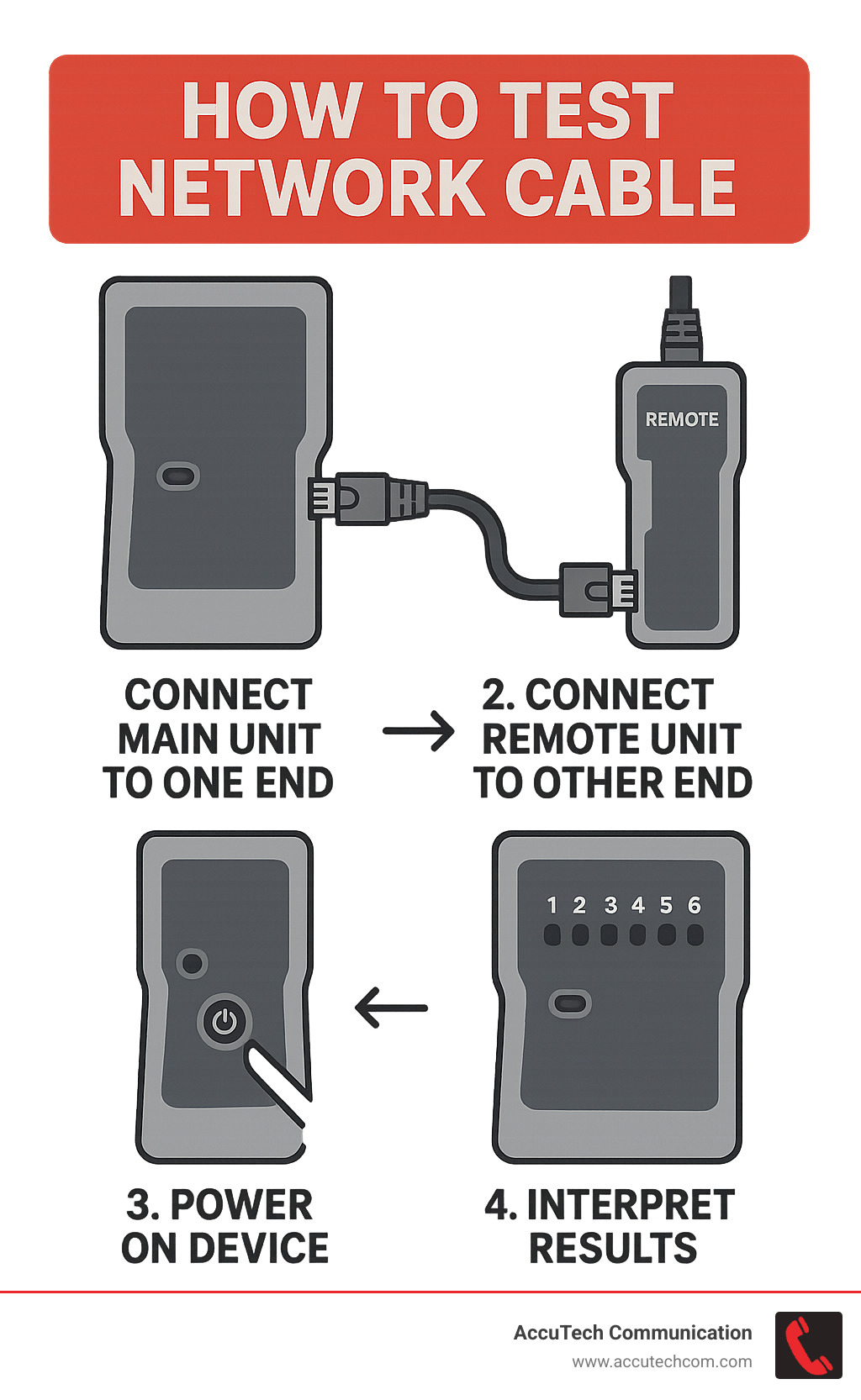
- Use a Cable Tester – Plug cable into tester’s main and remote units, power on, check if all 8 lights illuminate
- Test Without Equipment – Visually inspect for damage, swap with known good cable, check device link lights, use multimeter for continuity
Quick Signs Your Cable Needs Testing:
- Slow internet speeds despite good service
- Intermittent connection drops
- Video buffering or choppy calls
- No connection despite proper setup
Knowing how to verify your cables can save hours of frustration and costly downtime, whether you’re troubleshooting a single workstation or an entire office network.
Like changing a car’s oil, proactive network maintenance helps identify and resolve small issues before they turn into major outages. A faulty Ethernet cable can cause packet loss, reduced speeds, and unreliable connections, impacting your entire operation.
Network cable testing becomes especially critical in healthcare, manufacturing, and other sectors where communication reliability directly affects operations and compliance.
I’m Corin Dolan, owner of AccuTech Communications. Since 1993, I’ve helped New England businesses solve connectivity issues. I’ve learned that knowing how to test network cable is one of the most valuable skills a business can develop.
How to test network cable terms to remember:
Why Bother Testing Your Network Cables?
Ever had your connection drop during an important video conference or a critical upload slow to a crawl? These frustrating scenarios often trace back to one culprit: faulty network cables. While we tend to blame our ISP or Wi-Fi, the humble Ethernet cable is often the problem.
Signs of a bad connection are obvious: slow internet speeds, intermittent connection drops, and buffering video. These aren’t just minor annoyances—they’re productivity killers that can directly impact your bottom line.
This is why learning how to test network cable connections should be part of every business owner’s toolkit. Think of it as preventative maintenance for your digital lifeline.
Regular testing is about proactive maintenance that catches issues before they become major headaches. Just like you wouldn’t wait for your car to break down before checking the oil, you shouldn’t wait for complete network failure to verify your cables are working properly.
Preventing downtime keeps your team productive and your customers happy. Ensuring data integrity is critical for important file transfers or database connections where packet loss can cause real problems.
For businesses that depend on rock-solid connectivity, understanding your network foundation is essential. Our guide on Structured Cabling Definition explains how proper cabling forms the backbone of reliable communications. To see the bigger picture, check out The Impact of Reliable Cabling Services on Business Continuity.
Common Causes of Ethernet Cable Failure
Ethernet cables are surprisingly tough, but they’re not indestructible. After nearly three decades of troubleshooting network issues, I’ve seen cables fail in some pretty creative ways. Understanding these common failure modes helps you know what to look for when problems arise.
Physical damage tops the list of cable killers. Kinks and sharp bends happen more often than you’d think, especially when cables get stuffed into tight spaces or pulled too aggressively during installation. Every cable has a minimum bend radius – exceed it, and you risk breaking the delicate copper wires inside.
Frayed wires can develop from normal wear and tear, but I’ve also seen some interesting culprits. Office chairs rolling over cables, doors closing on them repeatedly, and yes – even the occasional mouse or rat thinking copper makes a tasty snack.
The RJ45 connectors at each end of your cable take a beating too. Those little plastic plugs contain eight tiny metal pins that need to make perfect contact with your network port. Bent or broken pins will definitely cause problems, and broken clips – that little plastic tab that keeps the connector locked in place – make cables prone to accidental disconnection.
But here’s something that might surprise you: incorrect wiring causes far more problems than physical damage. Those eight wires inside your cable need to be connected in exactly the right order on both ends. Get the sequence wrong, cross a pair, or leave too much wire untwisted during installation, and you’ll have connectivity issues. Our Ethernet Cable Wiring guide covers the technical details if you want to dive deeper.
Crosstalk sounds like something that happens in a busy office, but in networking terms, it means signals from one wire pair interfering with another. Modern cables are designed to minimize this through careful wire twisting, but poor installation practices can undo these protections.
Finally, signal interference from external sources can wreak havoc on data transmission. Fluorescent lights, power cables, and other electromagnetic sources can all cause problems, especially with longer cable runs.
Here’s a trade secret: About 99% of network cable problems stem from poor termination, not faulty cables themselves. That’s why knowing how to test network cable connections becomes so valuable – it helps you pinpoint whether the issue is the cable or how it was installed.
Understanding Different Ethernet Cable Types
Not all network cables are created equal. Walking into any electronics store, you’ll see Ethernet cables labeled with mysterious terms like “Cat5e,” “Cat6,” and “Cat6a.” These categories aren’t just marketing jargon – they represent real differences in performance that can make or break your network experience.
Think of cable categories like highway lanes. A two-lane country road (Cat5e) works fine for light traffic, but when you need to move serious data volumes, you want a multi-lane superhighway (Cat6a or higher).
Cat5e remains the workhorse of many small business networks. It handles 1 Gigabit speeds reliably up to 100 meters and provides 100 MHz of bandwidth. For basic internet browsing, email, and standard business applications, Cat5e gets the job done without breaking the budget.
Cat6 steps things up with 250 MHz of bandwidth while maintaining the same 1 Gigabit speed over 100 meters. The extra bandwidth provides better performance in electrically noisy environments and supports higher speeds over shorter distances. It’s become the sweet spot for many business installations.
Cat6a enters serious network territory with 10 Gigabit capability over the full 100-meter distance and 500 MHz of bandwidth. If you’re planning for future growth or running bandwidth-hungry applications, Cat6a provides excellent future-proofing.
Cat8 represents the cutting edge with 25-40 Gigabit speeds, but its 30-meter distance limitation makes it primarily useful for data center applications rather than typical office installations.
Here’s the crucial point: Your network performs only as well as its weakest link. Install beautiful Cat6a cables throughout your building, but connect them with old Cat5e patch cables, and you’ll get Cat5e performance. This is why comprehensive testing becomes so important when you’re troubleshooting performance issues.
For deeper dives into network performance, explore our Network Cable Speeds resource, or learn more about one of the most popular options in our Cat6 Network Cable guide.
| Cable Type | Maximum Speed | Bandwidth | Maximum Length | Best Use Cases |
|---|---|---|---|---|
| Cat5e | 1 Gbps | 100 MHz | 100 meters | Small offices, basic internet, VoIP |
| Cat6 | 1 Gbps | 250 MHz | 100 meters | Medium businesses, better noise immunity |
| Cat6a | 10 Gbps | 500 MHz | 100 meters | Enterprise networks, future-proofing |
| Cat8 | 25-40 Gbps | 2 GHz | 30 meters | Data centers, short high-speed runs |
Understanding these differences helps you make informed decisions about your network infrastructure and gives you better insight into what might be causing performance issues when you need to figure out how to test network cable problems.
How to Test a Network Cable: Two Simple Methods
Now that we understand why testing is important and what can go wrong, let’s dive into the practical side of how to test network cable. Whether you’re dealing with a simple patch cable that connects your laptop to the wall, testing wall jacks in your office, or verifying long cable runs that snake through your building’s walls, these two approaches will help you get to the bottom of any connectivity issues.
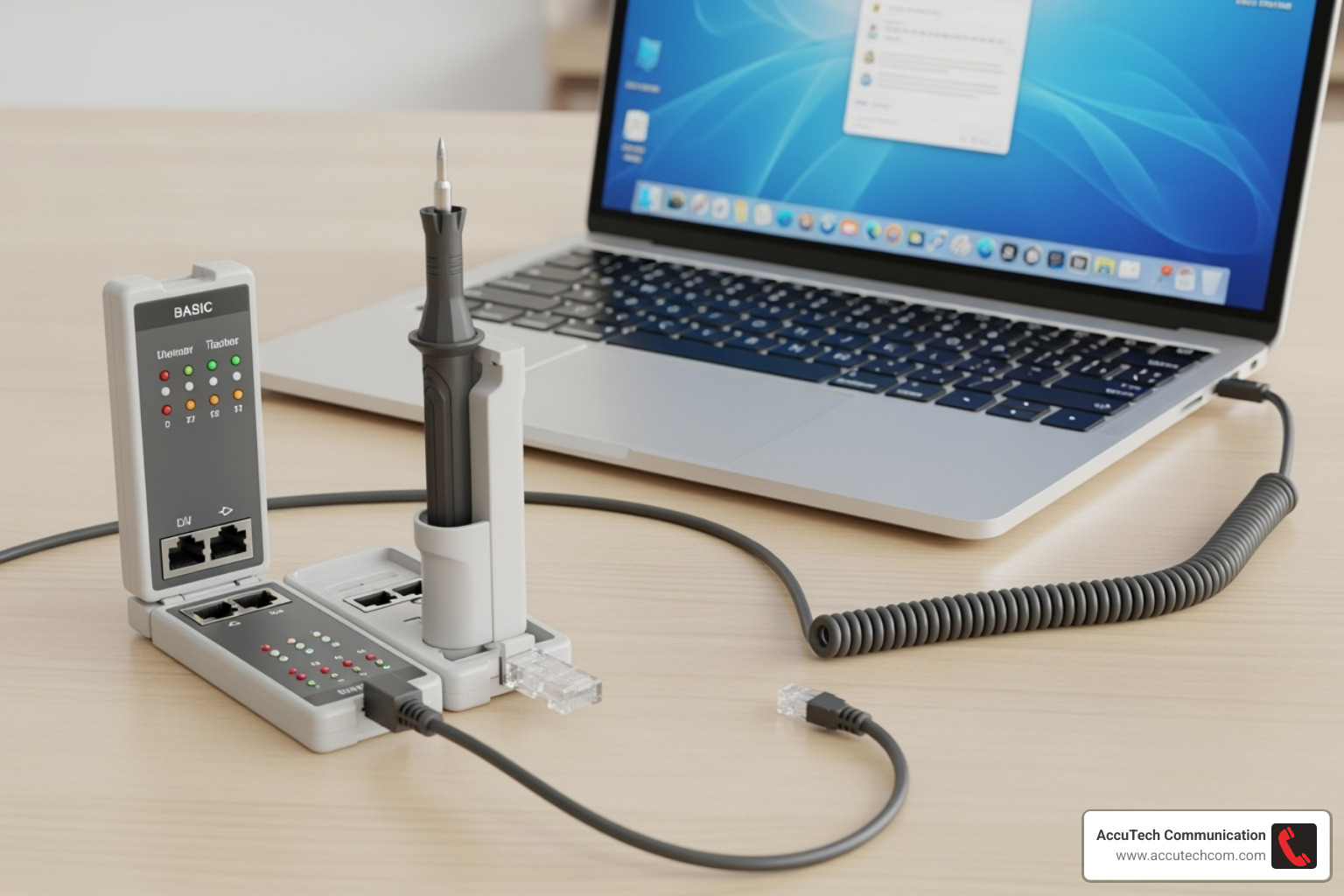
A Network Cable Tester is like having a doctor for your cables – it gives you a clear diagnosis in seconds. But don’t worry if you don’t have one on hand. There are plenty of clever ways to troubleshoot cable problems using tools and techniques you probably already know.
The beauty of these methods is their simplicity. You don’t need to be a network engineer to figure out if a cable is causing your headaches. With a little patience and the right approach, you can quickly separate the good cables from the bad ones and get your network running smoothly again.
Method 1: How to Test a Network Cable with a Tester
This is hands-down the most reliable way to determine if your Ethernet cable is working properly. Think of a cable tester as a conversation between two devices – one sends a signal, and the other confirms it received the message loud and clear.
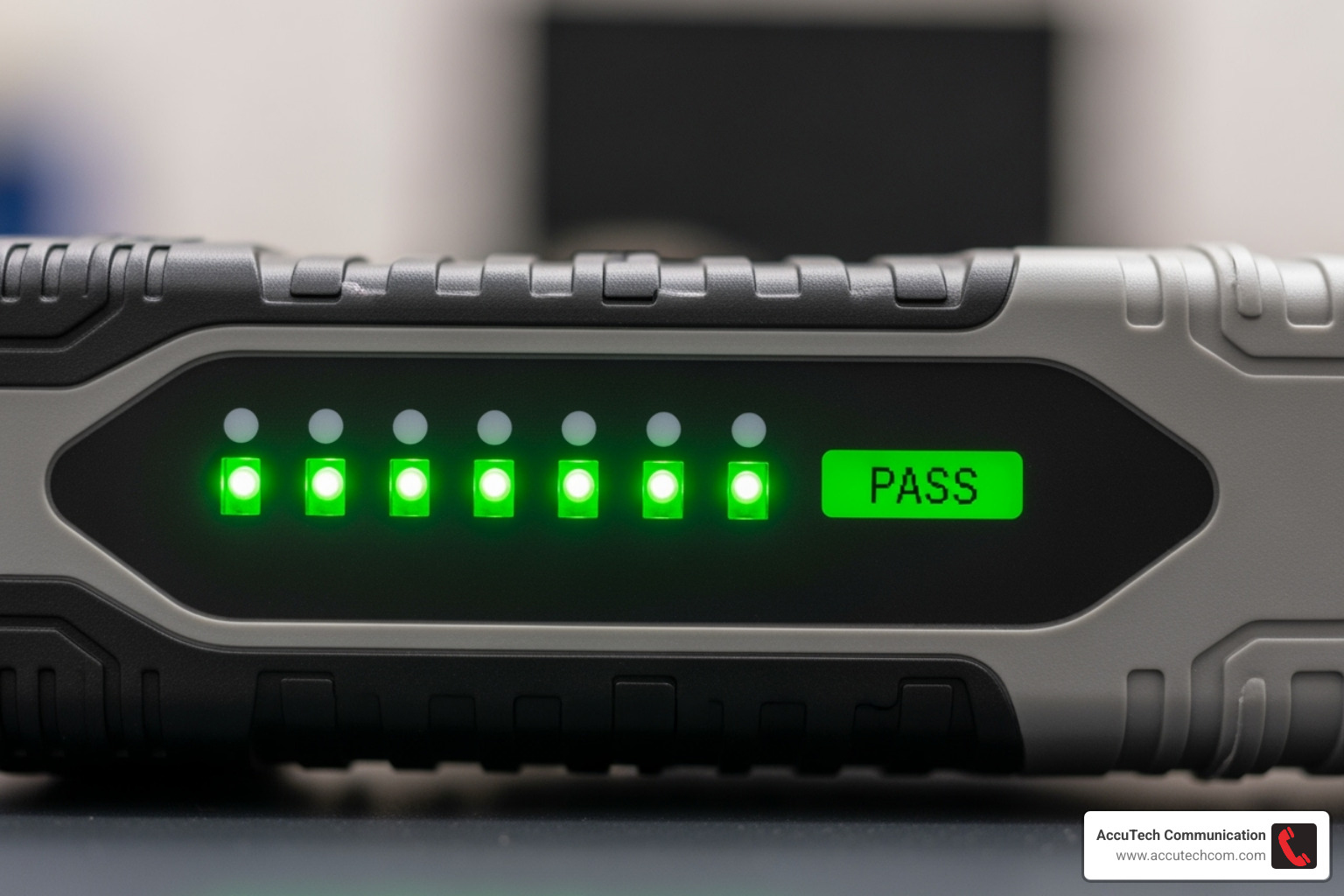
A typical cable tester comes in two parts: a main unit and a remote unit. The main unit sends test signals through each of the eight wires in your Ethernet cable, while the remote unit listens for those signals and reports back what it hears. It’s like playing telephone, except when it works perfectly, you know your cable is good to go.
These testers are brilliant at catching the most common cable problems. Open circuits happen when a wire gets completely cut or broken – the signal goes in but never comes out the other side. Short circuits occur when two wires touch each other, creating an electrical shortcut that confuses the signal. Miswiring means someone connected the wires in the wrong order during installation, while split pairs represent a sneaky wiring error that can dramatically slow down your network even though the cable seems to work.
Here’s how to test network cable using a tester, step by step. First, make sure your tester has a fresh battery – most use a standard 9V battery that you can pick up at any store. Connect one end of your Ethernet cable to the main unit and the other end to the remote unit. Power on the tester and hit the test button.
Now comes the moment of truth. All eight lights should illuminate in sequence – 1, 2, 3, 4, 5, 6, 7, 8 – on both the main and remote units. This sequential lighting tells you that every wire has a clear path from one end to the other and they’re all wired correctly. It’s like watching a perfect domino effect.
If you see missing lights, that means one or more wires are broken somewhere along the cable. The cable is definitely faulty and needs to be replaced. Lights appearing out of sequence indicate miswiring – the wires are connected, but they’re talking to the wrong partners at the other end. Multiple lights illuminating simultaneously suggest a short circuit where wires are touching each other inside the cable.
Testing wall jacks and installed cable runs is just as straightforward, though you’ll need two short patch cables that you know are good. Plug one patch cable from the wall jack into your tester’s main unit. Then head to wherever that cable terminates – usually a patch panel in a server closet – and plug another patch cable from the corresponding port into the remote unit. Run your test, and you’ll know if the entire cable path is working properly.
Even a basic Cat 5 Cable Tester can save you hours of frustration when you’re trying to figure out why a connection isn’t working. It’s one of those tools that pays for itself the first time you use it.
Method 2: How to Test a Network Cable Without a Tester
Sometimes you need to figure out how to test network cable when you don’t have a dedicated tester available. The good news is that many cable problems are obvious enough to spot with some detective work and tools you might already have lying around.
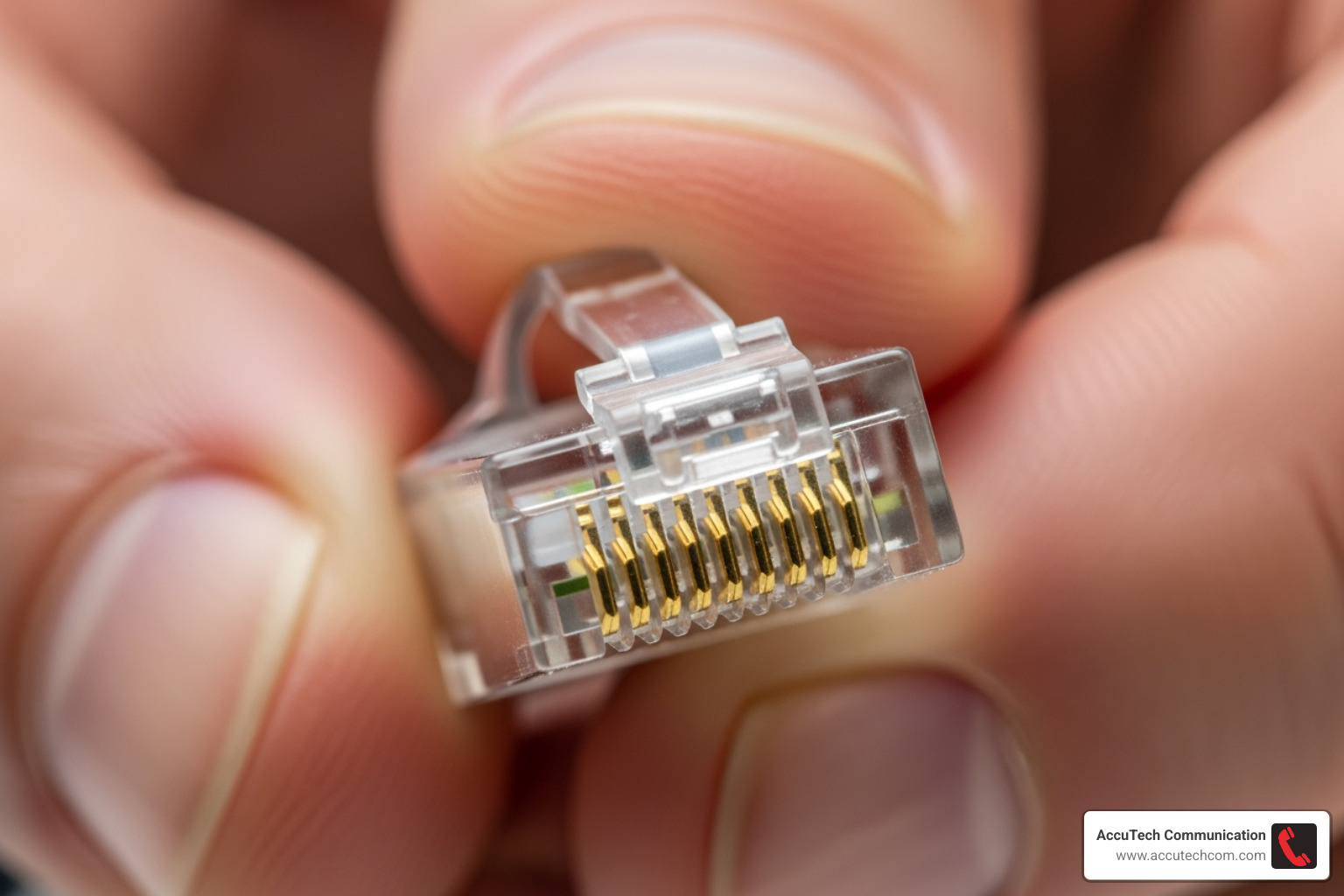
Visual inspection is always your first stop. You’d be amazed how many cable problems you can spot just by looking carefully. Run your eyes along the entire length of the cable, checking for cuts, kinks, or places where someone might have rolled a chair over it one too many times. Sharp bends are particularly troublesome – cables have a minimum bend radius, and exceeding it can damage the delicate wires inside.
Pay special attention to the RJ45 connectors at each end. Those little plastic clips break off surprisingly easily, and without them, your cable won’t stay securely connected to ports. Look inside the connector at the gold pins – are any bent, broken, or pushed out of place? Even one damaged pin can kill your connection.
The swap test is a classic troubleshooting move that works beautifully with cables. If you suspect a cable is causing problems, replace it with one you absolutely know works. If your connectivity issues disappear, you’ve found your culprit. If problems persist, you can cross that cable off your list and look elsewhere.
Device indicator lights are like little network health monitors that most people ignore. Those small LEDs next to Ethernet ports tell a story if you know how to read them. A solid green or amber light usually means you have a good physical connection. No light at all when a cable is plugged in strongly suggests either a completely dead cable or a faulty port. Flickering lights indicate data activity, which is generally a good sign. A yellow or orange light often means your connection is running at a slower speed than expected – possibly due to a cable that’s partially damaged.
If you have a multimeter with continuity testing, you can check individual wires for breaks. This requires exposing the copper ends of the wires at both ends of the cable, which means carefully stripping some of the outer jacket. Set your multimeter to continuity mode, touch one probe to a specific colored wire at one end, and the other probe to the same colored wire at the other end. A beep or very low resistance reading means that wire is intact. Test all eight wires this way – if any don’t show continuity, the cable is broken.
For more sophisticated testing, software tools like iPerf can help you determine if a cable is throttling your network performance. You can download iPerf from the iPerf website or Download iPerf here. Install it on two computers, connect them with your suspect cable, run one computer as a server and the other as a client, then observe the bandwidth results. If you’re getting significantly less throughput than your cable should support, you’ve likely found a performance bottleneck.
These manual testing methods require more time and detective work than using a dedicated tester, but they’re incredibly effective for identifying obvious problems and can save the day when you need answers immediately.
Frequently Asked Questions about Network Cable Testing
After helping businesses across New England troubleshoot their networks for over three decades, I’ve noticed the same questions come up again and again. These are the real-world scenarios that keep IT managers up at night and business owners frustrated with their connectivity. Let me share the answers that have helped countless clients get their networks running smoothly again.
How can you tell if an Ethernet cable is faulty?
A faulty Ethernet cable rarely keeps quiet about its problems. It usually announces itself through a series of increasingly frustrating symptoms that can drive anyone crazy.
The most obvious red flag is no connection at all – your device simply refuses to connect to the network, no matter what you try. But sometimes cables are sneakier than that. You might experience intermittent connection drops where everything seems fine one minute, then suddenly you’re kicked out of your video call or lose access to your cloud applications.
Extremely slow internet speeds are another telltale sign. Even if your internet service provider promises blazing-fast speeds, a damaged cable can turn your connection into a digital crawl. This leads to endless buffering during presentations, choppy video calls that make you look unprofessional, and file transfers that take forever.
Beyond these performance headaches, your eyes can often spot trouble before any fancy equipment. Take a close look at the cable itself – are there severe kinks where someone bent it too sharply around a corner? Any cuts or frayed wires from years of wear and tear? Check those RJ45 connectors at each end too. If the little plastic clip is broken, the cable won’t stay securely plugged in. Peer inside the connector and look for bent or broken gold pins.
The most reliable way to definitively diagnose a problem cable is using a Network Cable Tester. This tool takes the guesswork out of troubleshooting by checking the continuity and proper wiring of all eight wires inside the cable. When you know how to test network cable properly with one of these devices, you’ll get a clear pass-or-fail result in seconds.
How do you test installed Ethernet cables in a wall?
Testing cables that are already installed in walls might seem tricky, but it’s actually quite straightforward once you know the technique. The key is understanding that you’re testing the entire “channel” from one end to the other.
Here’s the process that works every time: Start by gathering your cable tester (the kind with separate main and remote units) plus two short patch cables that you know are good. These patch cables act as bridges between your tester and the installed cable.
At the wall jack you want to test, plug one patch cable from the jack into the main unit of your tester. Then head to the other end of that cable run – this might be a patch panel in your server closet, another wall jack in a different room, or wherever that particular cable terminates. Connect your second patch cable from that termination point into the remote unit of your tester.
Now run your test just like you would with any other cable. The beauty of this method is that you’re verifying the integrity of the entire pathway – the wall jack termination, the cable run through the walls or ceiling, and the termination at the other end. If all eight lights illuminate properly on your tester, you know the whole channel is wired correctly and ready for action.
When you’re dealing with complex installations or need professional certification for new cable runs, our Network Cable Installation Services can ensure everything meets industry standards and performs as expected.
Can a bad Ethernet cable work but be slow?
This is probably the most frustrating scenario I encounter when helping businesses troubleshoot their networks. Yes, absolutely – a cable can appear to “work” while secretly sabotaging your productivity with terrible performance.
Think of it like a highway with construction. Traffic can still get through, but it’s going to crawl along much slower than the speed limit allows. A partially damaged cable behaves exactly the same way.
Here’s what’s happening behind the scenes: Ethernet cables contain eight individual wires arranged in four twisted pairs. For Gigabit speeds, your network needs all four pairs working perfectly. If one pair gets damaged – maybe from a sharp bend or poor termination – your devices will automatically negotiate down to whatever speed the remaining good wires can handle. So your cable that should deliver 1000 Mbps might suddenly be limping along at 100 Mbps or even 10 Mbps.
Crosstalk and interference can also slow things down without completely breaking the connection. When signals from one wire pair bleed into another, or when external electromagnetic interference corrupts the data, your network devices have to work overtime retransmitting corrupted packets. This creates the kind of sluggish performance that makes simple tasks feel like pulling teeth.
Poor terminations are another common culprit. When wires aren’t properly punched down into jacks or crimped into connectors, you get weak signal paths that technically work but perform terribly. The connection light on your device might show green, but your actual experience will be painfully slow.
This is exactly why knowing how to test network cable goes beyond just checking if there’s a connection. You need to verify that all the wires are properly connected and that the cable can actually deliver the performance your business depends on.
Conclusion: Ensuring a Rock-Solid Network Connection
Mastering how to test network cable isn’t just a technical skill—it’s your insurance policy against network headaches. Throughout this guide, we’ve walked through both high-tech and low-tech approaches to diagnosing cable issues. Whether you’re using a dedicated tester to check all eight wire connections or simply swapping out a suspicious cable with one you trust, each method serves an important purpose in keeping your network healthy.
Think of your network’s physical layer as the foundation of a house. You can have the most sophisticated router and the fastest internet plan money can buy, but if your cables are damaged or poorly installed, everything built on top will suffer. Reliable cabling ensures consistent speeds, eliminates those frustrating connection drops during important video calls, and prevents the kind of mysterious slowdowns that make everyone blame the internet provider.
The beauty of proactive cable testing is that it catches small problems before they become big ones. A slightly damaged cable might work fine today but fail completely during your most critical presentation next week. By regularly checking your connections, you’re essentially giving your network a health checkup—and trust me, it’s much cheaper than dealing with emergency repairs when everything stops working.
Of course, there are times when the DIY approach reaches its limits. Complex wiring issues involving multiple patch panels or extensive in-wall runs often require professional expertise. Certifying new installations is another area where you’ll want to bring in the pros—this ensures your infrastructure can handle not just today’s needs but tomorrow’s bandwidth demands as well. And when your testing reveals problems that seem to point beyond the cables themselves, advanced network troubleshooting might involve switches, routers, or other hardware that requires specialized knowledge.
At AccuTech Communications, we’ve been solving these exact challenges for businesses across New England since 1993. Our team understands that every minute of downtime costs you money, which is why we focus on getting your network back up and running quickly. Whether you need expert diagnosis of a tricky cable issue or want certified Network Cabling Installation for a new office, we’re here to help businesses in Massachusetts, New Hampshire, and Rhode Island build truly reliable network foundations.
Your network is too important to leave to chance. With the right testing knowledge and professional support when you need it, you can ensure your business stays connected and productive.
